Roblox is one of the biggest gaming platforms on earth, and part of what makes it so fun is the ability to run custom modifications. A Roblox script executor like Delta allows players to inject custom Lua scripts. These scripts automate tasks, run Auto Farms, and show players behind solid walls (ESP wallhacks).
If you have just installed the Delta Executor APK or iOS package but aren't sure how to actually execute scripts inside your favorite games (like Blox Fruits, Murder Mystery 2, or Pet Simulator 99), this beginner-friendly tutorial will show you exactly how to do it safely.
Step 1: Download and Set Up Delta Executor
Before executing any custom code, you need a working version of the injector installed on your device. Make sure to download the client files from our verified download hubs:
Step 2: Generate Your 24-Hour Access Key
When you launch Delta for the first time inside Roblox, you will see a screen asking for a verification key. This is standard for almost all major executors:
- Launch Roblox and enter any game lobby.
- Open the Delta pop-up overlay and tap the "Get Key" button.
- This will copy a secure link to your clipboard. Open your browser and paste this URL.
- Follow the ad checkpoints on Work.ink or Linkvertise to generate your 24-hour key code, then copy it. If you need help, consult our dedicated Delta Key setup guide.
- Paste the key back into the Delta interface to unlock the script execution console!
Step 3: Sourcing Safe Roblox Scripts
Scripts are written in the Lua script programming language. You should never write them yourself unless you are a programmer! Instead, you can search public script repositories.
⚠️ Warning on Script Safety:
Never download scripts that are packaged inside .exe or .msi installers. True Roblox scripts are plain text files (often with a .txt or .lua extension) or plain text text blocks that you copy. Get your scripts from verified platforms like **ScriptBlox** or the official **Delta Script Hub**.
Step 4: Executing the Script In-Game
Once you have copied the raw text code of your chosen script, follow these steps to load it into the game:
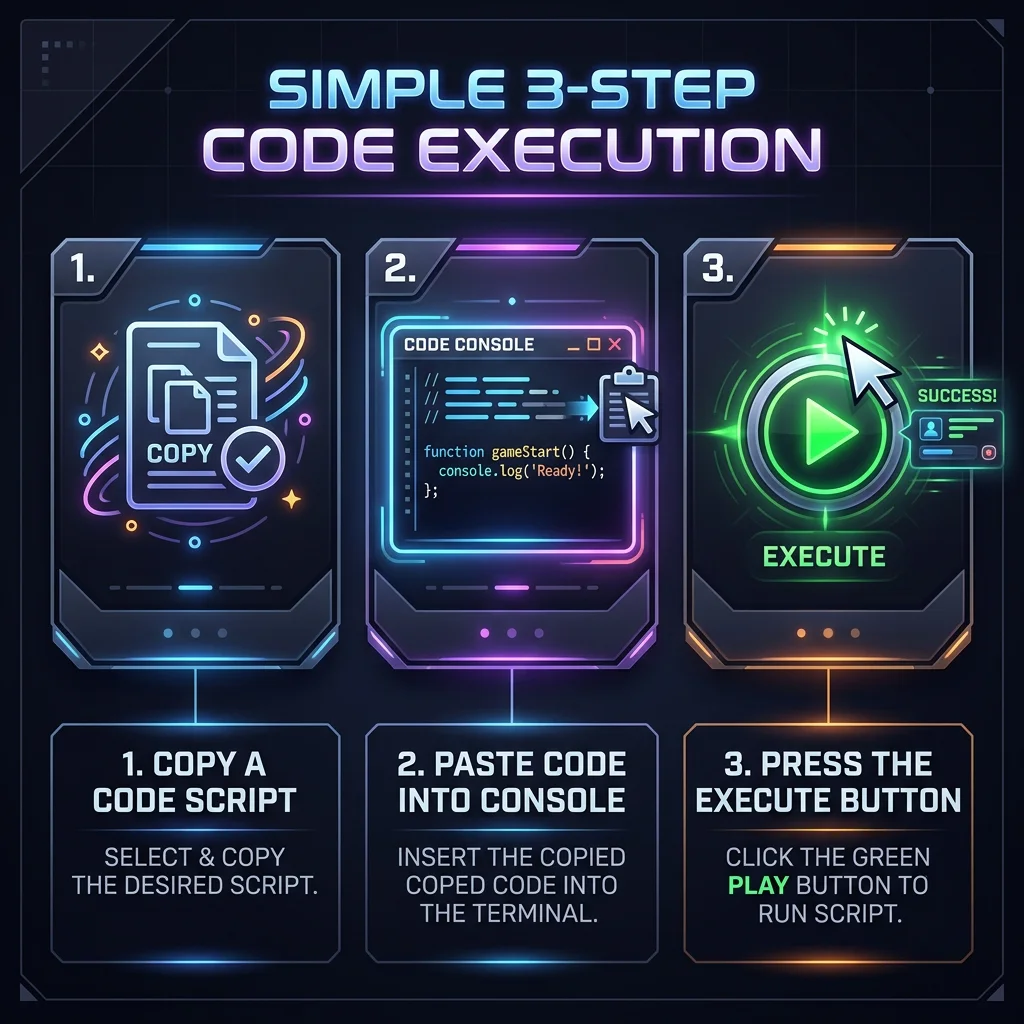
- Open Roblox, log in, and join your target game lobby.
- Tap the floating **Delta Logo overlay** to bring up the executor panel.
- Locate the editor icon (it looks like a page with coding hooks) to open the **Lua Script Editor**.
- Delete any default placeholder text. Tap the input box, select Paste, and dump the copied script code into the window.
- Tap the **"Execute" (or Play) button** at the bottom of the pane.
- The script GUI window (like Hoho Hub, Redz Hub, or W-azure) will pop up on your screen. You can now toggle hacks like Auto Farm or ESP!
🛡️ Crucial E-E-A-T Safety Checklist (How to Avoid Bans)
Running custom scripts changes how the game processes library hooks. To prevent Roblox from catching your account in ban waves, follow these rules:
- Never use your main account: Always create alternate accounts (alt accounts) for scripting. If a ban lands, your main account remains safe.
- Set execution intervals: Ensure your scripts do not send spam requests to the game servers. Add script delays like
task.wait(0.5) inside execution loops.
- Run inside a Virtual Machine sandbox: To prevent any file access to your main device, use sandboxing tools like F1 VM or VMOS.
🔧 Common Script Errors & Troubleshooting
1. Script crashes immediately on execute
This happens if the script requires too much memory or has broken code. Try clearing the editor and running a simpler test script like a print("hello world") script to verify the console works.
2. Delta Console says "Please Update"
Every week, Roblox updates its security settings. When this occurs, the old executor crashes. You must uninstall Delta, visit our home page, and install the new update APK file.
3. Script interface does not show up
Ensure you have pasted the complete code block. Truncated scripts will have syntax errors and fail silently without opening the GUI menu.